Live Session Calendar Integration
Overview
With this integration Nifty creates a calendar event based on your live session, makes sure that all the participants are being invited, and reflects the invitation responses in the statuses of each learner.
You can enable this feature from the Live Session Edit Form with the Enable Calendar checkbox.
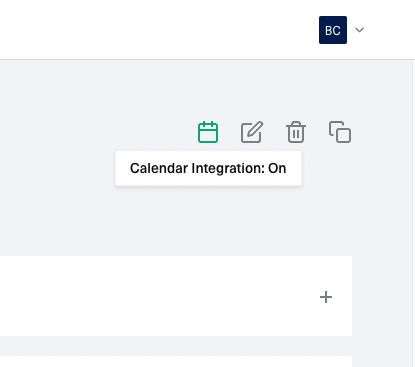
To check whether the integration is on or off when you are working on a session you can look for the icon indicator in top right part of the Live Session View Page.
Event Structure
A calendar event will be created based on a couple of session properties.
| Live Session Property | Calendar Event Property |
|---|---|
| Name | Title |
| Start Date and End Date | Duration |
| Description | Description |
| Location | Location |
These fields will always be kept in sync with the actual event. This means that if you change them, and the calendar integration is enabled, the event will also be updated.
Learner Invite Scenarios
There are two main flows in which a calendar invite will be sent to a learner. Keep in mind that these scenarios assume that you have the calendar integration enabled.
When a learner registers to a session
When someone registers to a session the process will go through the following steps.
Approval
If Approval is enabled the learner will be saved with the status Waiting Approval and the approver will be notified.
Waiting List
After the learner gets approval or if approval is disabled the app will check whether the learner needs to be added to the waiting list. This step will be performed only if the functionality is enabled.
If the maximum capacity was reached the learner will be saved with the status Waiting List. If not the process will go to the next step.
When the session will allow for new registrations the learner will receive a calendar invite and the status will be changed to Invited.
Actual Registration
If the previous steps have been completed or if they were disabled the process will be completed with this final event. The learner will be saved with the status Registered and an invite will automatically be sent over email.
In case the learner answers the calendar invite with No the status in Nifty will be changed to Declined. If the learner answers with Yes the status will stay the same: Registered.
When a learner is being added manually to a session
When you manually add a learner to a session an invitation will automatically be sent if you use one of the following statuses: Registered, Invited, Declined, Attended, Absent, Go Show. Based on the learner response the status can change in the following ways:
| Initial Status | Learner Responds With Yes | Learner Responds With No |
|---|---|---|
| Invited | Status changes to Registered | Status changes to Declined |
| Registered | No Changes | Status changes to Declined |
| Declined | Status changes to Registered | No Changes |
| Attended | No Changes | No Changes |
| Absent | No Changes | No Changes |
| Go Show | No Changes | No Changes |
FAQs
What happens when the learner changes the calendar invite response?
If the learner status is Invited, Registered or Declined the response will trigger a change based on the scenarios described in the table above. Otherwise no changes will occur.
How do I edit the calendar invitation content?
The calendar event content will always be kept in sync with the live session description. So if you want to change how the event will look like you need to edit the description.
How do I attach files to the event?
You can add files directly in the session description.
What happens when a user selects Tentative/Maybe?
This type of response will not influence in any way the status of a learner in Nifty.