Manage Reports
Overview
Reports can be managed from the Analytics section of the app. From here you can create reports or report templates, download the ones that have been generated or work on your scheduled tasks.
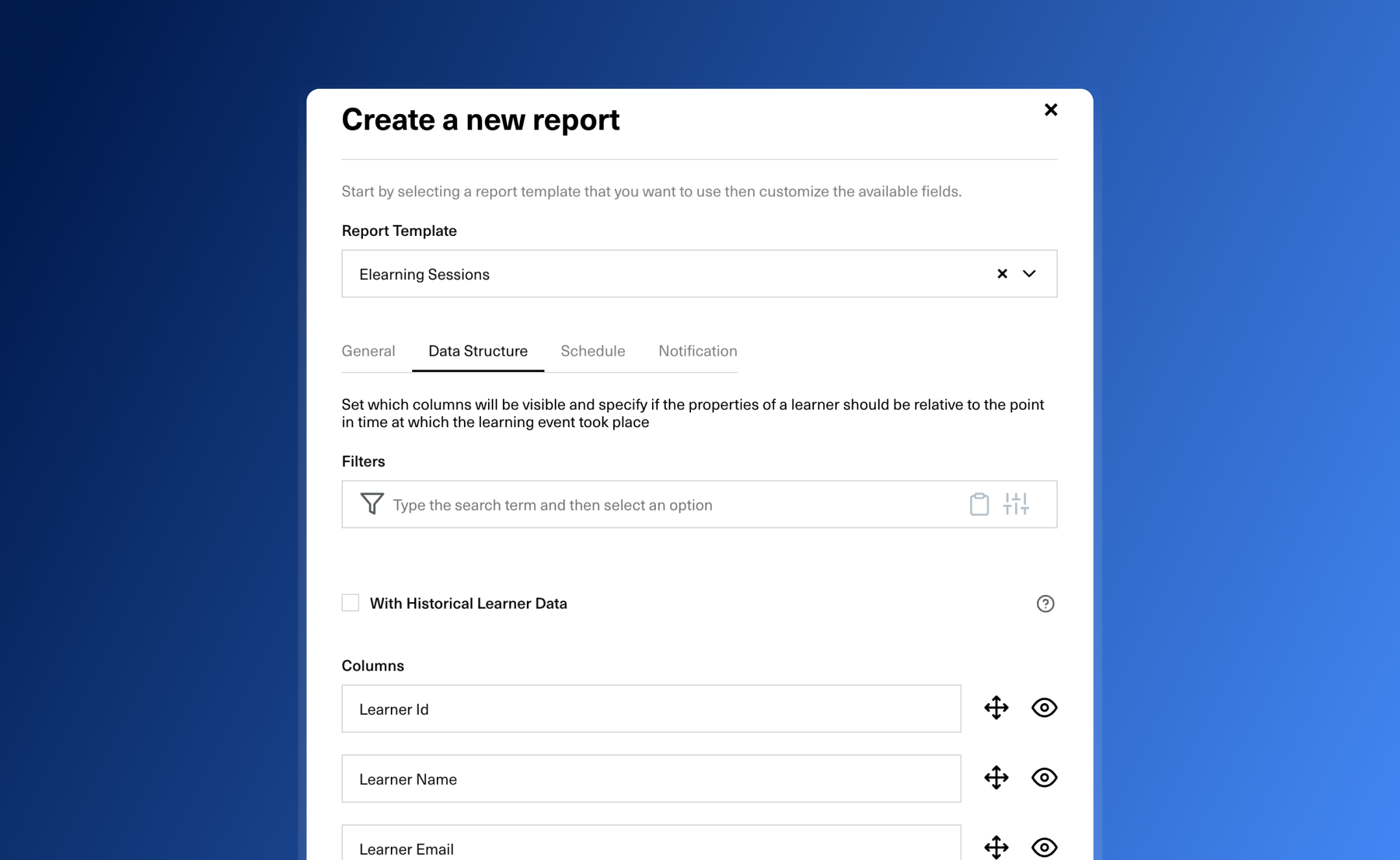
Create A Report
- Go to the Analytics Section
- Click on the Create Report button
- The Create Report side modal will appear. Here you can select the type of report that you want to use and then customize it from the 4 different sections.
| Section Name | Description |
|---|---|
| General | The name and the description of the report |
| Data Structure | From here you can filter your data and customize the columns visibility, order and labels |
| Schedule | Instruction on when the report should be create. More on this in the Scheduling and Recurrence section |
| Notification | Specify who can access this report and how the notification message will look like. |
- After you filled in the fields you can click the Preview button to see how your final report will look like. If everything is ok click the Create button. Your report will begin to generate now. Depending on the amount of data you have requested it might take a couple of minutes for your file to be available. You will be notified over email when everything is ready.
Scheduling and Recurrence
You can schedule reports to be created at a later date. This can be done by specifying a date in the Generate On field.
If you have a report that should be generated periodically fill in the Recurrence Interval. You can choose to limit the number o times the report will be recreated by selecting a date from the Recurrence End field. If no date is specified the report will keep being recreated until you delete the last one that was scheduled.
Edit a Scheduled Report
If you want to make changes to a report that you have scheduled just click on the report label and you will be directed to the Edit Scheduled Report side modal. From here you can make the changes that you want. Keep in mind that only reports that have the status Scheduled can be edited.
Download Reports
There are two actions that you can use to download a report.
- From the List Reports table click on the download icon from a specific row.
- From the email notification that you receive when the report is ready click on the action button, and you will be directed to the app and the download process will begin after you login.
Keep in mind that the report needs to have the status Completed in order for you to be able to download it.
Create a Report Template
Since a Report inherits much of the structure of Report Template it's no surprise that most of the fields that are present in the previous form can also be found here.
- Click on the button with the same name from the top right part of the Analytics page.
- You will have to select from one the default Report Templates as a base. Afterwards you can customise to your use case.
- When everything is ready click on the create button and you template should be ready for use.
Use Report As Template
You can also use a previously created report as a base for a new one. Just click on the Use As Template icon button from a row in the List Reports table.