Assessments
Manage Assessment instances
Monitoring an Assessment
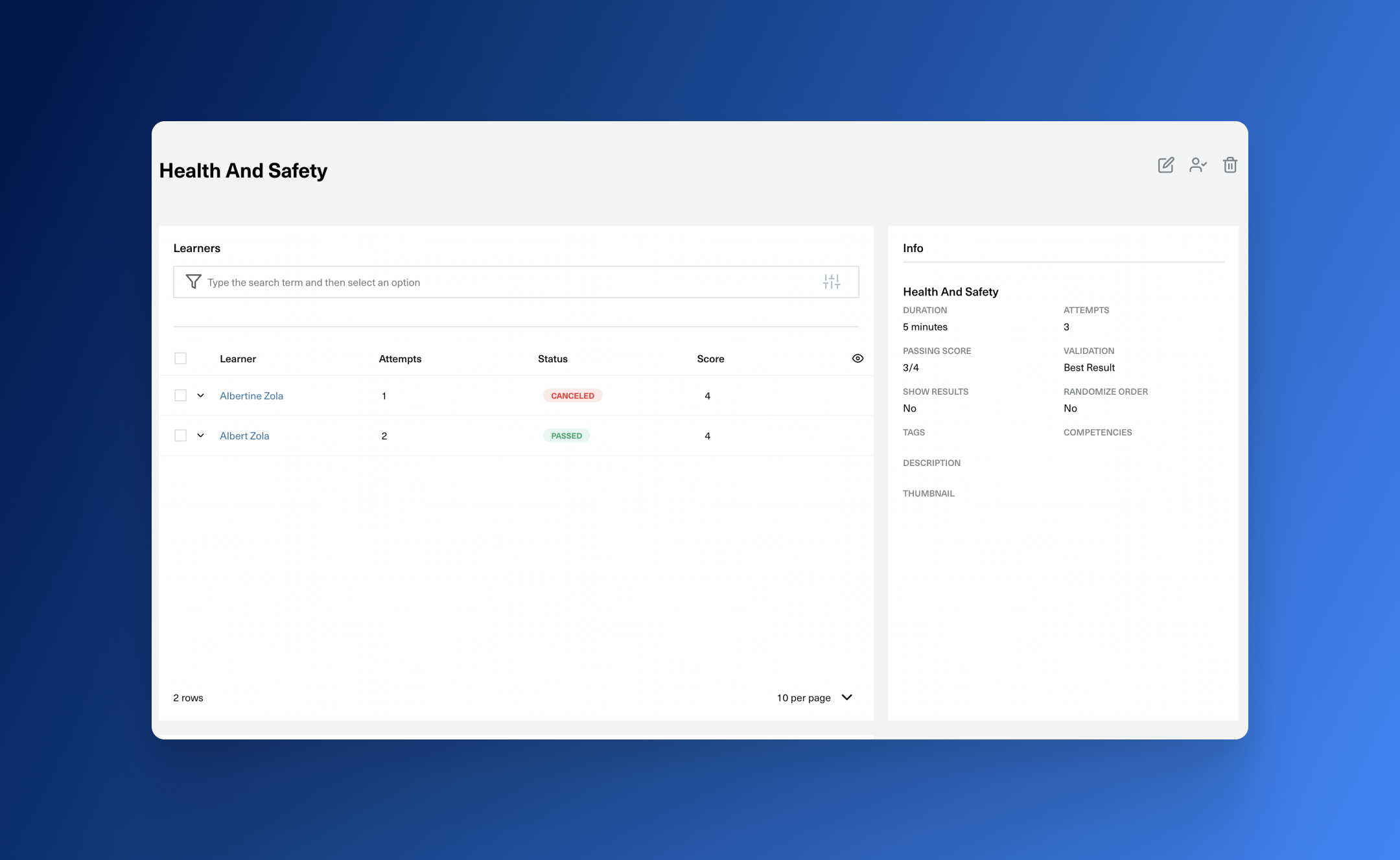
After you have created and assigned your assessment monitor it from either the Assessment Instances List Page or the Assessment View Page.
Both pages will present you with the Assessment Instances Table. From there you can follow the progress done by your audience and check or score each attempt when you expand each row. Each row represents an assigment instance and the nested table that appears when you expand it shows you the assessment instance attempts.
Assessment Instances Table Columns Reference
| Column | Details |
|---|---|
| Assessment section | |
| Learner | Name of the learner that is taking the assessment |
| Assessment | Name of the assessment |
| Status | One of the following: Not started/In Progress/Failed/Passed/Canceled. (see below when these are set) |
| Attempts | How many attempts were made out of how many are possible |
| Score | Number of correct answers. If the validation type of the assessment is Best results then the best score of all the attempts will be display, else the latest attempt score will be displayed. |
| Passing Score | The score that determines the passing/failing of the assessment |
| Attempts section | |
| Started On | Date/time when learner started the assessment |
| Finished On | Date/time when learner finished the assessment |
| Status | One of the following: In progress/Ended. |
| Score | Number of the correct answers for the current attempt |
| Scored Attempt | Yes/No based on the importance of the attempt in the final result of the assessment |
Statuses Reference
| Status | Details |
|---|---|
| Not Started | Learner hasn't started the assessment assigned to him |
| In progress | Learner has started the assessment |
| Scoring | The assessment instance needs to be evaluated manually by a user |
| Passed | Learner reached or surpassed the passing score |
| Failed | Learner didn't reach the passing score |
| Canceled | Learner's assignment instance was canceled by the Admin |
| Ended | Learner completed the attempt |
View learner answers
- Click on the attempt row from the nested table
- A side modal with learner answers will appear
- For there you can see the answer for each question and the validation that has been performed
Scoring an assessment
An assessment that has questions that need manual verification has to be scored after a learner has submitted it. To do this go through the following steps:
- Click on the attempt row from the nested table
- A side modal with learner answers will appear
- For each question that needs scoring you can mark if it is Correct or Incorrect using the action buttons below each input.
- After you have finished scoring every question click the Submit Evaluation button and, based on the assessment properties, the instance status will change to either Passed or Failed.
Managing an Assessment
The assessment form can be managed from either the Assessment List Page or the Assessment View Page.
The Assessments List Page
You can access this page from the Catalogue section by clicking on the Assessment tab. Here assessments are displayed in a table view that allows query the results and also perform actions like edit, assign, delete and build reports.
The assessment details are organized in the table as follows:
| Column | Details |
|---|---|
| Name | Assessment name |
| Min Score | Passing score out of Max possible score |
| Duration | How much time does a learner have to complete the assignment |
| Validation | Best result/Last result. Assessment will have the score of the best attempt in case of Best Result or of the last attempt in case Last result validation is set |
| Attempts | How many times can a learner try to complete the assessment |
| Tags | List of available tags |
| Competencies | List of the competencies that the assessment contributes to |
| Owner | Who created the assessment |
| Created At | When was the assessment created |
| Updated At | When was the assessment last updated |
The Assessment View Page
You can reach this page by clicking on the assessment name in the Assessments List Page. The view aggregates all information on the assessment in one place displaying them in different cards.
| Section | Details |
|---|---|
| Learner card | Displays all the instances of the assessment along with the possibility to delete them |
| Info card | Displays general information on the assessment: Name, Duration, Attempts, Passing Score, Validation type, Show results, Randomize Order, Tags, Competencies, Description, Thumbnail |
| Form items | Displays the list of questions/categories that build the assessment, with the possibility to reorder the items, add new ones and delete the items if no isntance contains them |
Besides providing different ways of viewing data these two pages allow you to perform various actions that will be described in the next sections.
Edit an assessment
The Edit assessment Form allows you to change only the Details and Scoring sections. Questions are managed directly from Form Items cards. Scoring changes can be made only to assessments not assigned yet to learners.
- This action is available from either the Assessment Table or the Assessment View Page
- From the table you need to click on the edit icon relative to the assessment row. In the view page the icon will be visible in top right corner of the page
Assign an assessment
Once created assessments become Learning Units that can be assigned to learners.
- This action is available from either the Assessment Table or the Assessment View Page
- From the table you need to click on the Assign icon relative to the assessment row. In the view page the icon will be visible in top right corner of the page
- Assign action will open Create Learning Assignment form with Content Type field pre-filled with Assessment and Learning unit field pre-filled with the current assessment name.
Delete an assessment
An assessment can be deleted only if there are no learners assigned to it. In order to do this you should first remove the assessment instances from Assessment view page -> Learners card
- The delete action is available from Assessment List Page or Assessment View Page
- From the table you need to click on the Delete icon relative to the assignment row. In the view page the icon will be visible in top right corner of the page