Learning Assignments
Manage Learning Assignments
- Go to Activity
- Click on the Create button
- Select Create learning assignments option
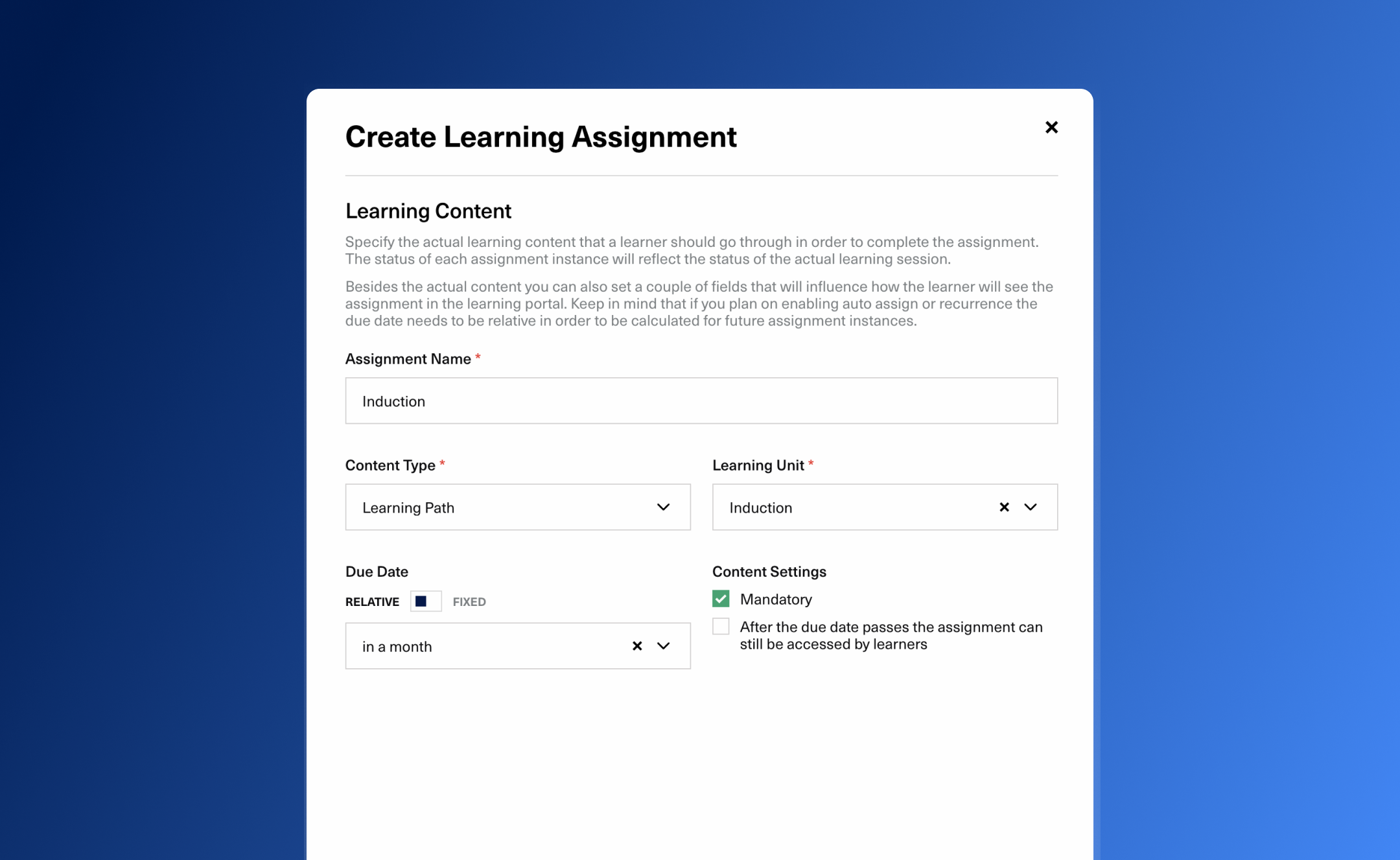
- A new form will appear where you can specify all the details of your new assignment.
Assignments can also be created from the catalogue section by clicking on the assign button that can be found at the end of each content row.
The Create Learning Assignment Form is structured into 3 different sections that group information based on the role it has in the actual assignment.
| Field | Description | Mandatory |
|---|---|---|
| Learning Content | ||
| Name | Name of the assignment. Used only in the admin flow. It will not be visible to the learners. | Yes |
| Content Type | Elearning, Assesment, Learning Path, Live course or Survey | Yes |
| Learning Item | The actual learning content that will be used | Yes |
| Due Date | How much time when learners need to complete their assignment. This can be set as a fixed date or a relative interval, picked from a predefined list. the interval is related to the moment when an assignment instance is created for the learner | |
| Content Settings | Whether an assignment is Mandatory and visible to a learner after the due date has passed. | |
| Assignation Process | ||
| Audience | A list of learners or learner groups that determine who will be targeted by this assigment. | Yes |
| Assign to current audience | Learning assignment instances will be created for each learner included in the audience section. If set to off, assignments instances can be created after. | |
| Schedule assignation for current audience | Learning assignment instances will be scheduled to be created at a later date for each learner in the audience fields. If set to on, a schedule date must be chosen. | |
| Notifications | ||
| Notify Learners about new assignments | Each time a learning assignment instance is created for a learner an email will be sent to them. | |
| Remind learners of pending assignments | Learners that did not finish an assignment will receive a notification at a specific amount of days before the due date. |
Edit a learning assignment
The Edit Learning Assignment Form allows you to change only a select number of fields: Name, Due Date, Mandatory, Portal Visibility. If you want to add new learning assignment instances, extend the audience, modify assignation rules or edit the notifications you need to access specific forms from the Learning Assignment View Page.
- This action is available from either the Assignments Table or the Assignment View Page
- From the table you need to click on the edit icon relative to the assignment row. In the view page the icon will be visible in top right corner of the page
- After clicking on the icon button a form where Name, Due Date and Content Settings can be modified.
- Update the assignment data and click submit to finalize the process.
Editing an assignment will not trigger any changes on assignment instances.
Delete a learning assignment
There are 2 types of delete for an assignment with or without learning sessions.
Delete without learning sessions
The assignment and the assignment instances will be deleted. The learning sessions (elearning sessions, assessment sessions) that were created with each assignment instance will just be unliked from the actual assignment.
Delete with learning sessions
The assignment, assignment instances and corresponding learning sessions will be deleted.
- The delete actions are available from List Assignments Table or Assignment View Page
- From the table you need to click on the Delete icon relative to the assignment row. In the view page the icon will be visible in top right corner of the page
- After clicking on the icon button a menu to choose from With Learning Sessions and Without Learning Sessions will be displayed.
Keep in mind that you can also delete individual instances from the Learning Assignment View if you want an approach that offers more fine-grained control.