eLearning
Manage Elearning Courses
Elearning courses can be managed from the Elearning Courses List Page, under the Catalogue section, or through the Elearning View Page which is available when you click on a course link.
Create an elearning course
- Go to Elearning Courses List Page and click on the Create button in the top right part of the page
- Select the Create eLearning Course option and a new form will appear
- We provided below a reference for all the fields in the form
- Once everything is ready submit the form and your course will become available
| Field | Description | Mandatory |
|---|---|---|
| Name | This will be visible to learners in Portal under Catalogue -> eLearning section or Activity -> eLearning sessions (when Manager/Admin allocates it to learner or learner started the course) | Yes |
| Tags | You can either associate existing tags or create new tags, for filtering purposes. | |
| Competencies | Each course woks on creating or improving a competency. You can either associate existing competencies or create new ones. These will be usefull for filtering. | |
| Learner Visibility | You can set which learner groups can see the course from a list. | |
| Content | The actual content that will be played to a learner. You can add an existing file from a list or add new content from 'Add' button - Scorm, Document or Embed | Yes |
| Description | This will be visible to learners in Portal in course's card or course's details page | Yes |
| Thumbnail | Pick a representative image for the course that will be displayed to learners in Portal in course's card or course's details page |
Edit an elearning course
- Go to Elearning Courses List Page and search for the course that you want to edit and then click on the Edit icon button at the end of a specific row
- A new form will appear that has the same fields
- Based on your changes your course versioned so that you can manage how the new content will affect existing sessions. For more details check the versioning section.
- After you have filled in your updates submit the form and your course will be changed.
Delete elearning courses
- Go to Elearning Courses List Page and either select the courses that you want to delete
Delete action triggers a confirmation dialog before actual delete. This will change course's status innto Inactive and will be removed from search results.
Assign a course
- Go to Elearning Courses List Page and search for the course that you want to assign
- Click on the Assign icon button at the end of a specific row
- The Assign learning form will appear where you can specify who will receive this assignment and how everything should work
- The assignment will create sessions for each assigned learner with status Not Started.
View courses
There are 2 ways of checking elearning courses.
Elearning Courses List Page
Here data is presented in a table format format along with a set of actions that we talked about above.
Elearnign Course View Page
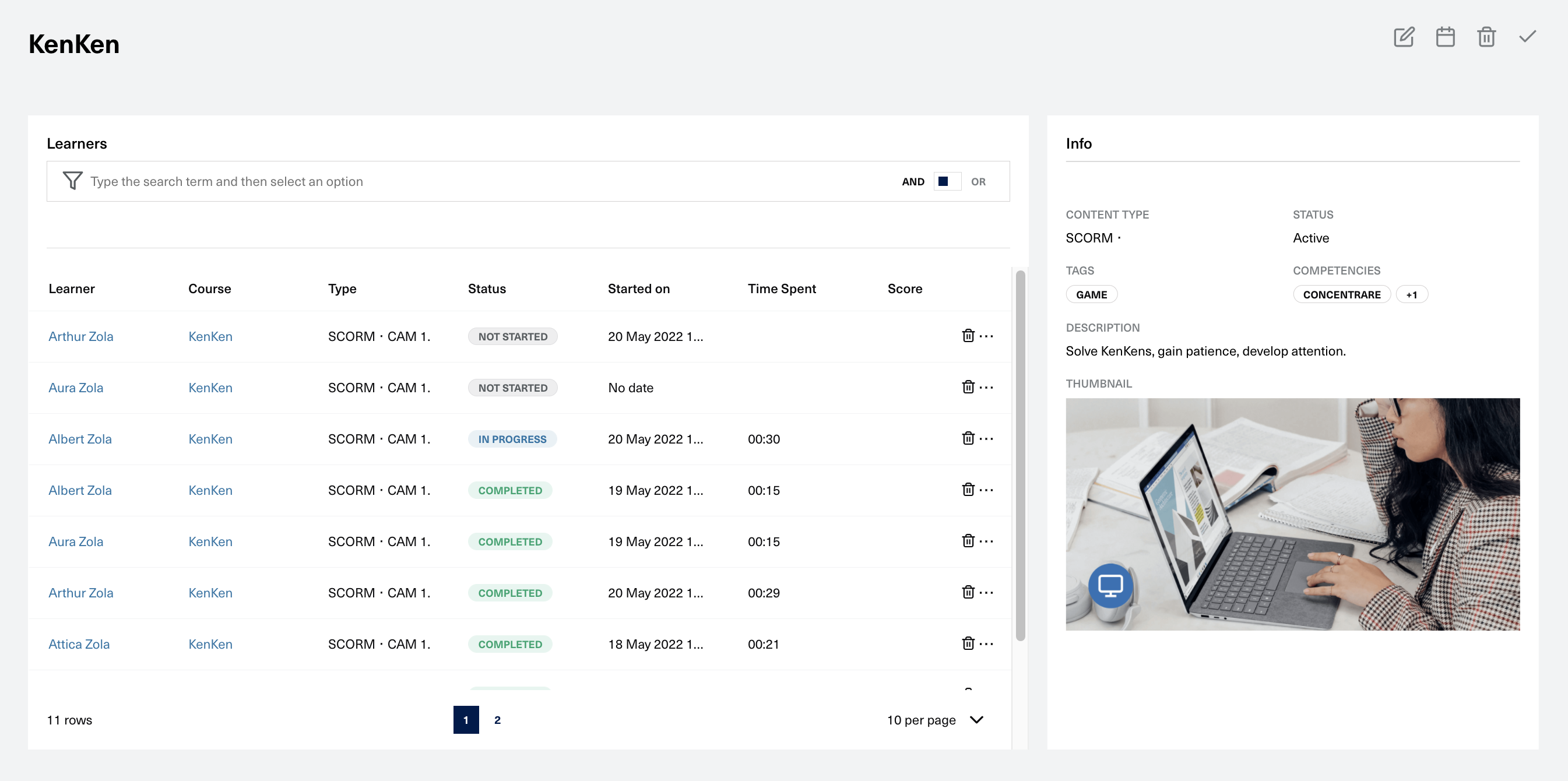
After clicking on the name of an elearning course you will be directed to the view page. The page is organized 3 sections
- Header that contains the same actions as a table row
- Info Card
- Elearning Sessions