Assessments
Create An Assessment
Add your questions
Before you can create your assessment you need to have actual questions that can be used in the final form. To do this check the following steps.
- Go to Resources section from the main menu
- From here you can either create the questions one by one using the Create Question Form or import them.
Using the create form
- Click on the Create button from the top right part of the page and select the Question option
- The Create Question Form side modal will appear. Check the field references below.
| Field | Description | Mandatory |
|---|---|---|
| Name | Name of the questions. Will be visible to a learner in the final form | Yes |
| Type | This determines what type of input will be used in the final form and how the result will be interpreted | Yes |
| Tags | Use them to organize your questions. They will not be visible to the learner | No |
| Description | Additional info that the learner may require when reading the question | No |
These are the following question types that you can choose from:
| Type | Description | Import File Label |
|---|---|---|
| Single Choice | A radio input where you can select only one option | SINGLE_CHOICE |
| Multiple Choice | A radio input where you can select multiple options | MULTIPLE_CHOICE |
| Free Text | Textarea input that allows a learner to submit unstructured data | FREE_TEXT |
| Range | Single choice input where options are displayed on a single row in a range format | RANGE |
| Dropdown | Single choice input where that is displayed as a select input | DROPDOWN |
| Date | A date input where users can select a specific value from a calendar | DATE |
- After you have filled in the form click submit and your question will be ready for use.
Using the import functionality
- Click on the Import Questions button from the top right part of the page
- The Import Question Form modal will appear
- First download the csv template to find out how to structure your data for the import. When you upload your file the system will check for duplicate questions or template errors and will display any potential errors bellow the form fields.
- Make sure that the question type field is set to Assessment. This way your questions that have options will be validated for correct options.
- Click the Import button to submit the form and your questions will be available to use in an assessment form.
Create the assessment
- Go to Catalogue section from the main menu
- Click on the Create button from the top right part of the page and select the Assessment option
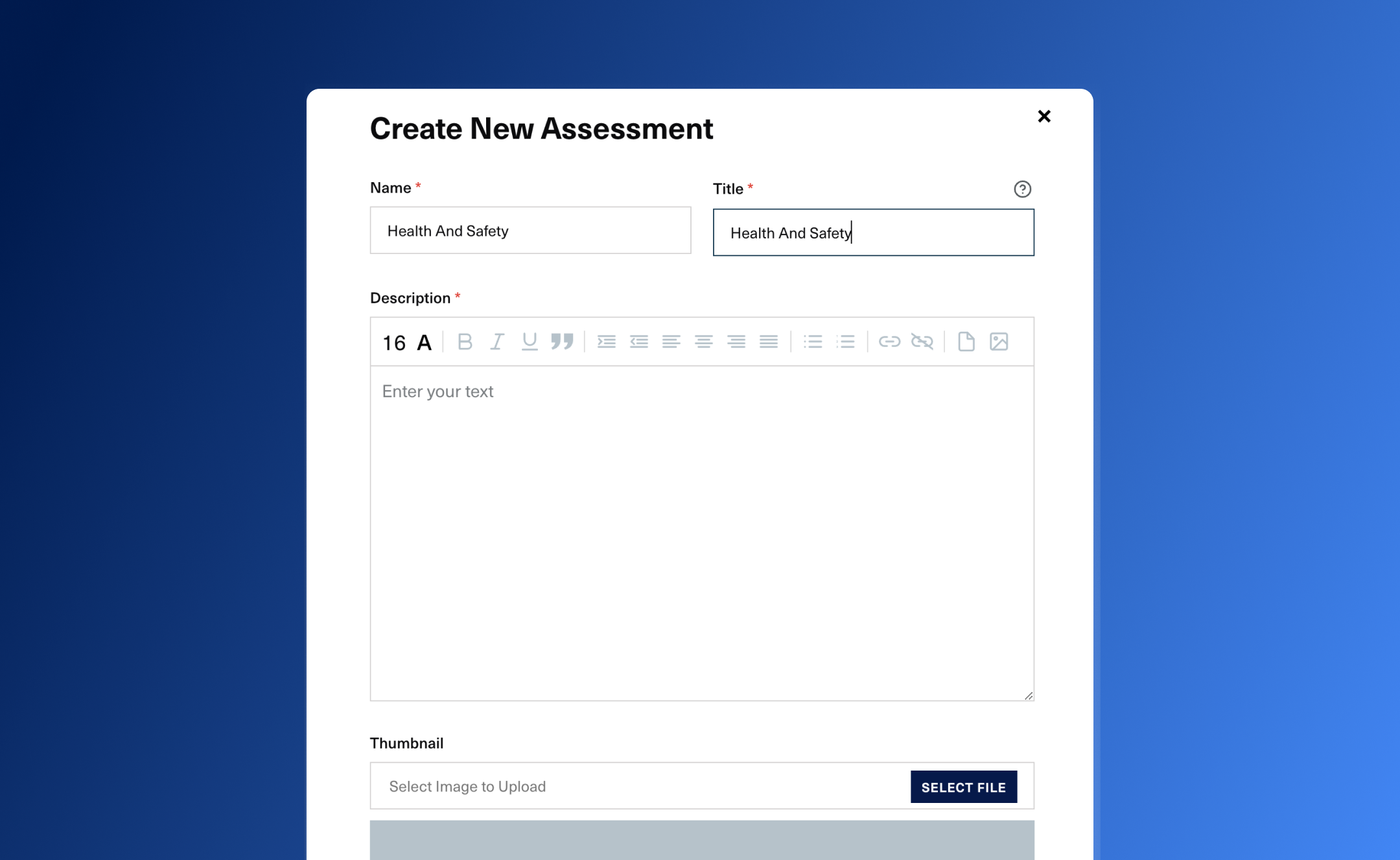
- The Create Question Form side modal will appear. Check the table below for references on each field.
| Field | Description | Mandatory |
|---|---|---|
| Details | ||
| Name | Name of the assessment, used to create assignments/learning paths in Admin flow, that will be displayed in Portal in the Assessment cards. | Yes |
| Title | Title of the assessment displayed in Portal once learner starts the test. | Yes |
| Description | Details displayed in Portal in the Assessment form | Yes |
| Thumbnail | Picture of the assessment displayed in Portal for The Assessment card and Assessment form | No |
| Competencies | A list of the competencies that are grown through the assessment | No |
| Tags | A list of tags that you can define for the assessment | No |
| Questions | Yes | |
| Add Category | Gives the possibility to add randomized questions from multiple categories by specifying the category/categories and the number of questions | |
| Add Question | Gives the possibility to pick questions from a list | |
| Questions table | A summary of the questions that will be added to the assessment along with Delete action for each | |
| Scoring | ||
| Passing Score | How many correct answers are needed to pass the assessment | Yes |
| Max Score | Pre-filled with the total number of questions from the assessment | |
| Maximum attempts | How many retries does a learner have | Yes |
| Duration(in minutes) | How much time a learner has to complete the assessment | Yes |
| Validation type | It can be either Best result - assessment score is the highest score of all the attempts or Last result - assesment score will be the last attempt score | Yes |
| Show results | ||
| Randomize question order | Question will have different order at each attempt/for each learner |
- After you have filled in the required field submit the form and your assessment will be available for use.
Assign it to your learners
To make the assessment available for your learners you need to assign it. To do this check the following steps:
- Click on the Assessment tab from the Catalogue section
- Find the assessment that you want to use and, from the corresponding table row, click on the Assign button
- The Create Learning Assignment form will appear, with the content section already prefilled
- For details on how the form is structured check the learning assignments section.
Testing the assessment
If you want to check how the final assessment form looks like you can assign it to yourself and check it in the Learner Portal
Monitor learner progress
After you have assigned your assessment you can monitor its status from two different places.
- The Assessment View Page - From the Assessments table click on the assessment that you have created.
- The Learning Assignment View Page - In the Activity section, from the Learning Assignments, table click on the assignment that you have created.
From these two pages you can check the progress of each learner on their corresponding assessment session.