Learning Assignments
Manage Assignments
Overview
You can interact with your assignments from different areas of the application.
- The Manage sections shows you two tables: the Learning Assignments table and the Learning Assignment Rules table.
- Clicking on an assignment name will direct you to the Assignment View Page. Here you will access the command center of your assignment.
- In the Activity section you will find a table that shows you all the assignment instances that are in the system.
- Assignments can also be created from the catalogue section by clicking on the assign button that can be found at the end of each content row.
The View Page
The Learning Assignment View Page allows you to monitor individual and scheduled instances and gives you utilities to perform various actions on each part of the functionality.
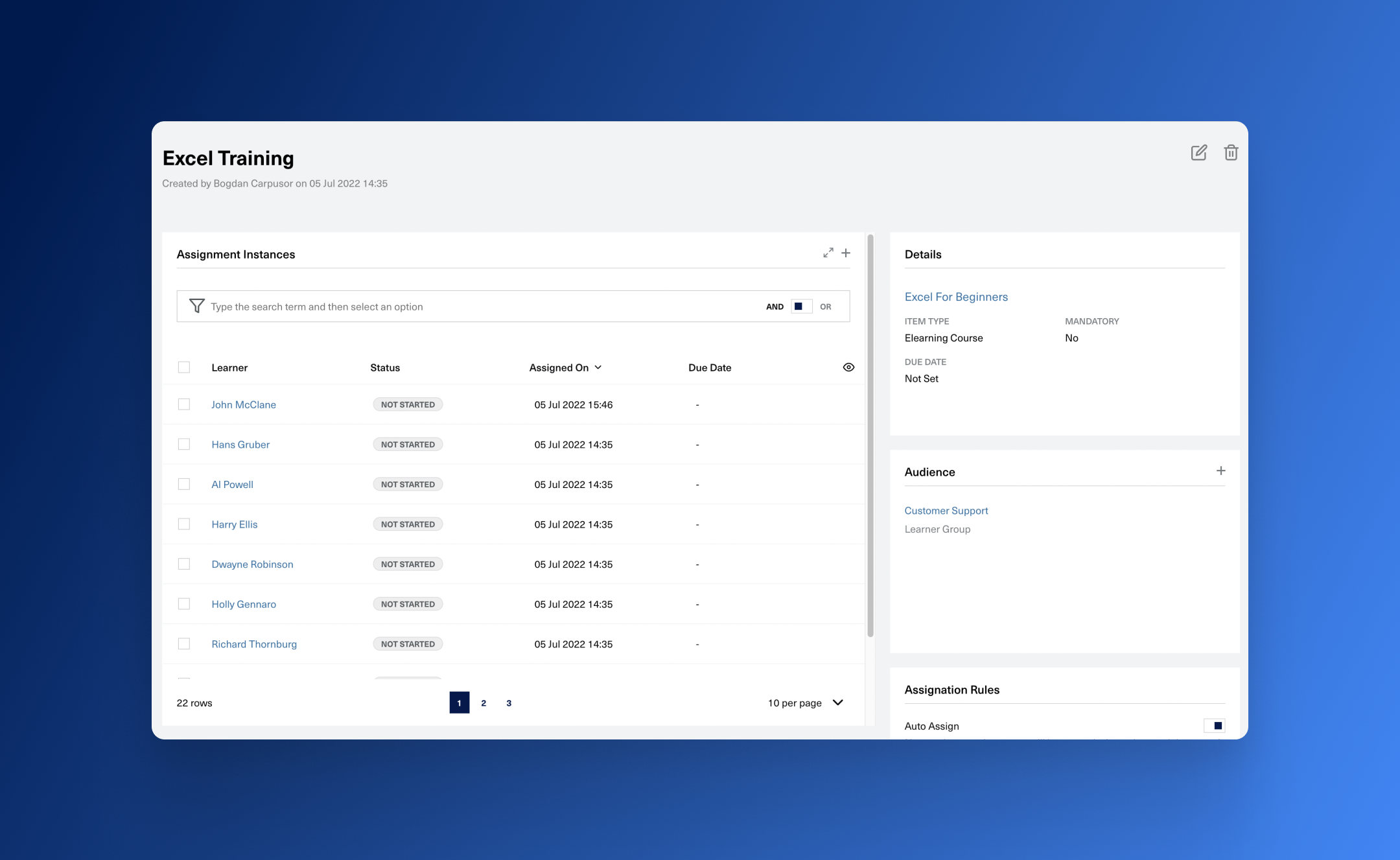
Like any other dashboard the page is organized into different cards that address specific parts of an assignment.
Assignment Instances
This is basically the focus point of the page. From here you can view the progress of each learner on the assignment.
The card displays a list with all the learning assignment instances and their statues. You can query the data using the Filter Bar and also perform actions like:
- Change due date
- Cancel - the assignment instance status will be updated to Canceled.
- Delete - will remove assignment instance and the corresponding learning session.
- Delete without learning sessions
Assignment instance status flow
Based on the status of an instance you can determine the state of the learners task. The status reflects the actual value of the learning session.
flowchart LR
A[Creating] --> B[Not Started]
B --> C{ }
C -- Any Type of Content --> D[Completed]
C -- Elearning --> E[Completed Passed]
C -- Elearning --> F[Completed Failed]
C -- Any Type of Content --> G[Failed]
B -- Manual or from versioning --> H[Canceled]
C -- Manual or from versioning --> H[Canceled]
D --> I[Learner completed the assignment]
E --> I
F --> J[Learner did not complete the assigment]
G --> J[Learner did not complete the assigment]
H --> K[End of assignment]
I --> K
Add Learning Assignment Instances
You can add assignment instances even after an assignment was created. To do this go through the following guide.
- Click on the Add icon button from the top right part of the Assignment Instances card.
- A new form will appear, with a structure similar to the one used in the Assignation Process section, in the create form.
- Select either learners or learner groups and click Submit once you ar ok with what will be created.
Keep in mind that if you add instances by selecting learner groups the Audience will not be updated.
Edit Learning Assignment Instances
You can change the due date or the mandatory attribute of assignment instances that have the status In Progress or Not Started. You can do this by selecting the instances from the table and clicking on the corresponding action buttons.
Remove Learning Assignment Instances
Assignment instances can be removed by selecting the from the instances table and clicking the delete action button. Like in the case of assignments you can choose between:
- delete without learning sessions (only the assignment instances will be removed)
- delete with learning sessions (the assignment instances and the corresponding learning sessions will get deleted)
Audience
This section displays the list of Learners and Learner Groups that the assignment was created for and that can be targeted by custom rules.
You can update the audience by click on the Add icon button in the top right part of the card. This way you can change the audience without actually adding new instance.
Adding/Removing audience members will not influence the assigment instances.