eLearning
Manage eLearning sessions
In order to follow the progress done by your audience on elearning courses you can check the eLearning Sessions List Page. Here the data is displayed in a table format with each row representing the progress of a learner through a specific elearning course.
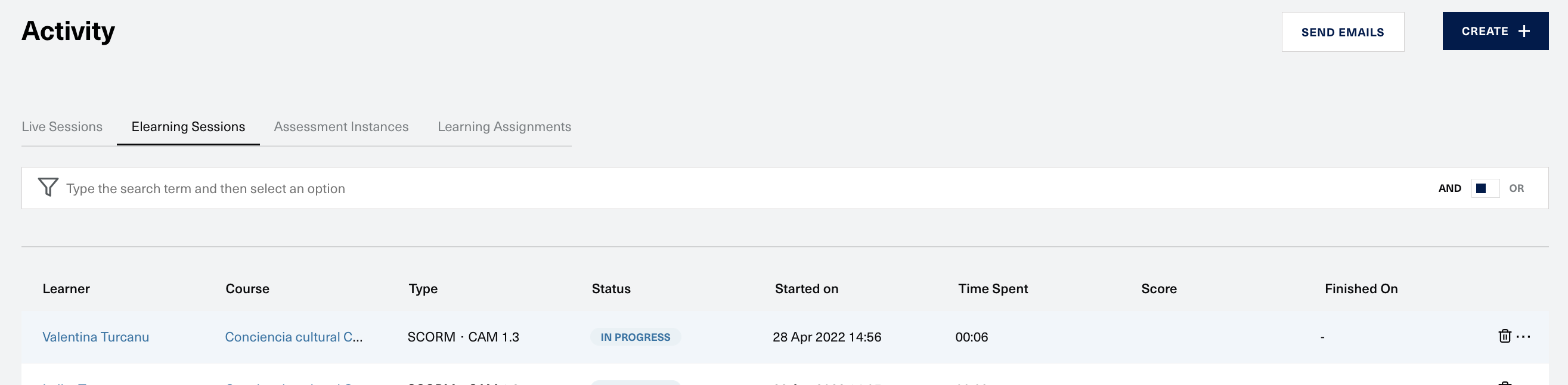
Columns Reference
| Column | Details |
|---|---|
| Learner | Name of the learner that is playing this eLearning course |
| Course | Name of the eLearning Course |
| Type | Type of file uploaded to the course - e.g. SCORM _ <Version> / DOCUMENT _ PDF/ EMBED * YOUTUBE |
| Status | One of the following: Not started/In Progress/Completed/Failed/Completed Passed/Completed Failed/Canceled (see below when these are set) |
| Started On | Set when the learner starts the course from Portal |
| Time Spent | Set based on after Learner leaves the course, while in progress or after completion; Manual - updated from Update result dialog |
| Score | Returned by SCORM files, after learner completes the course |
| Finished On | Set after a course is considered completed |
Table Actions
You can perform a couple of manual actions on the elearning sessions for complete control in cases where you want to update your learning data.
Delete elearning session
You can delete an elearning session by clicking on the trash can icon on a specific row.
Update elearning session
The session state can be overridden by an admin by clicking on the Update Result option from the three dots menu at the end of a row.
Reset elearning session
By clicking on the Reset option from the same menu you can set the state of an elearning session to the initial value. The status will be changed to Not Started and the other tracking values will have no value.
Statuses Reference
| Status | Details | SCORM | Documents | Embedded Media |
|---|---|---|---|---|
| Not Started | Learner hasn't started the session | Available | Available | Available |
| In progress | Learner is going through a piece of elearning content | Available | Available | Available |
| Completed | Learner has completed an elearning content | Set by the actual SCORM File | When the learner reaches the end of the document | When the learner reaches the end of a media file |
| Completed Passed | Learner has reached the end of a SCORM content and has passed the test | Set by the actual SCORM File | Not Available | Not Available |
| Completed Failed | Learner has reached the end of a SCORM content but has failed the test | Set by the actual SCORM File | Not Available | Not Available |
| Failed | Learner has reached the end of a SCORM content and has failed the test | Set by the actual SCORM File | Not Available | Not Available |
| Canceled | Indicates that a session has been terminated. Usually used during the versioning process of an elearning course | Available | Available | Available |